

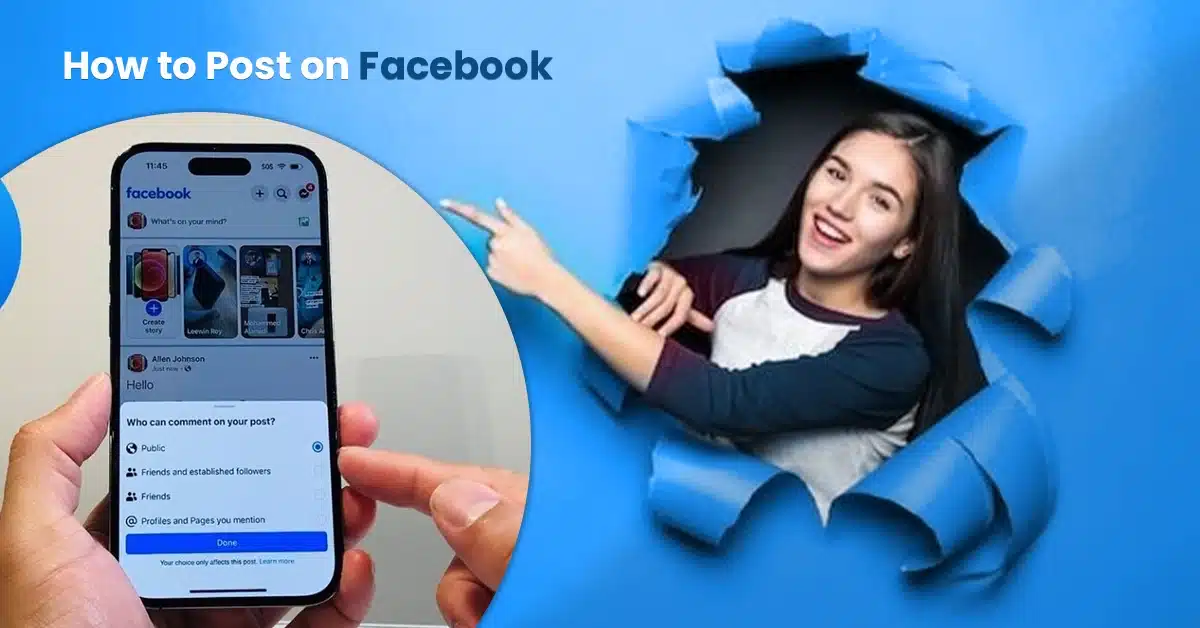
Every day, millions of people log in to Facebook to scroll through and share updates with their connections. If you also want to share your moments with others or grow your business page, Facebook is the right place to start.
If you do not know how to post on Facebook, read this guide till the end. We explain how you can post on Facebook from both your mobile and computer, edit or delete content, schedule posts, and fix issues like Facebook post not showing.
30-Second Summary
Want to know how to post on Facebook? You can use both mobiles and desktops for that. This app supports texts, videos, pictures, and links. You can also start a live video on it. You choose who can see your posts by changing the privacy settings.
Moreover, you can schedule posts for Facebook Pages and Groups to gain online presence for your business. With the right formatting, hashtags, and interaction with the audience, you can maximize your engagement and reach significantly.
What You Need Before Posting
Before making a post, make sure that you are logged into Facebook and have a stable internet connection. For mobile users, the Facebook app should be installed on your device.

Also, you should know where you are posting. Is it on your personal profile, a group, or a page? Because each of these has slightly different posting and visibility rules.
How To Post On Facebook Step By Step (Mobile App)
Let’s first learn how to post on Facebook from mobile.
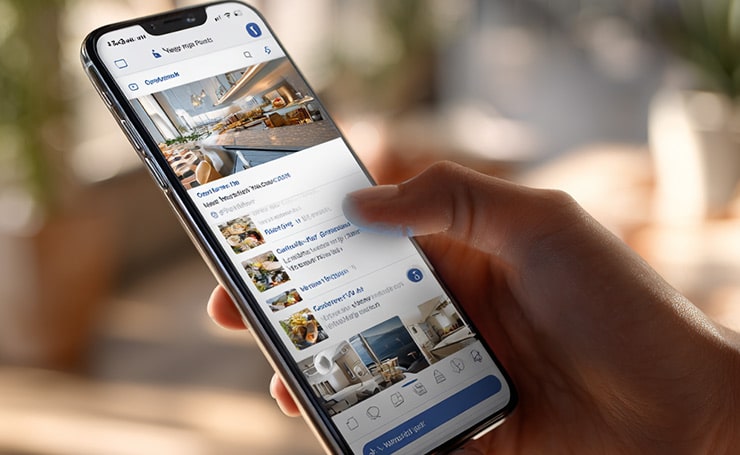
- To post on your profile, first open the Facebook app on your iPhone or Android.
- In the center of your screen, you will see the “What’s on your mind?” box.
- Tap it and select the type of content you want to post, including text, media, or links.
- After tapping “Post,” the update will show on your profile (timeline).
Facebook Text Post or Status Update
- To create a Facebook text post, click on the “What’s on your mind?” box and start typing.
- Add emojis, feelings, or activities.
- It is also called Facebook Status Update.
- Tap “Post” to share it with all your friends.
How to Post Photos on Facebook

- To upload images, click on the “What’s on your mind box.”
- On the bottom left, click on “Gallery.”
- Select one or multiple images you want to share.
- You can add a caption, tag people, or add your location.
- Lastly, click on “Post.”
How to Post Videos on Facebook
- Uploading videos is similar to uploading images.
- After opening the box, go to “Gallery” just like you did for the pictures.
- Choose the video(s) you want to post.
- You can also click on “Live Video” for live streaming.
How to Add Links to a Post

- When you are adding a photo or video from your gallery, you can simply paste any link as a caption.
- For posting only links, copy and paste the URL in the post box.
- Facebook generates a preview automatically.
- Add a short description and click on “Post.”
Facebook Post Privacy Settings (Mobile)
Select the audience you want to share your pictures, videos, and statuses with.
The options include
- Public
- Friends
- Friends except
- Specific Friends
- Only me
Adjusting Facebook post privacy settings controls who can see and interact with your posts.
How to Post on Facebook from Desktop

- Open your browser and search for facebook.com.
- On the homepage, the “What’s on your mind” box is right in the center.
- Click on it and post whatever you like.
Posting Photos, Videos, and Links on Desktop
- To upload any of these, you need to open the “What’s on your mind” box.
- You can write text, copy and paste URLs, or upload pictures and videos.
- Drag media from your computer, drop it into the box, and click “Post.”
Facebook Post Privacy Settings (Desktop)

- Click on the audience selector below your name.
- The options are the same as those on a mobile phone.
- Always check your privacy before uploading anything.
How to Post on a Facebook Page
Having a Facebook page and posting on it regularly connects your brand to customers. You can share updates and grow your online presence. If you use Facebook for monetization, affiliate marketing also boosts your growth.
Take a look at how you can post on a Facebook page.
- Open Facebook and go to “Pages.” On the desktop, it is on the right side. On mobile, you need to click on the three lines at the top right corner and scroll down to find it.
- After opening it, you will see all the pages you manage.
- Click on the page you want to share an update on and tap “Create Post.”
- A box will appear, and you can upload your message, any image or video, or links.
- If you want to reach more people, click on “Boost Post.” This feature will turn your post into a simple ad.
How to Post on a Facebook Group
Posting on your Facebook groups works like posting on your page.

- Open Facebook and find “Groups.” It is below the “Pages” on the desktop. On mobile, you have to click on those three lines again (at the top right corner) and scroll down.
- Pick the Facebook group you want to post in. You will see the groups you manage or have joined.
- Click on the “Write something” box. Start typing, upload images or videos, or go live.
- In groups, you can use the following features.
- Recommendations
- Poll
- Event
- GIFs
- Check-in
- Chat room
- Live Video
- Images and videos
- Feelings and activities
- Multimedia and Q/A session
- Add your post details. Tag friends and adjust post settings if necessary.
- When you click “Post,” your Facebook update goes live in your group for all members to see.
Schedule Posts on Facebook
You can schedule posts for pages on Facebook. Here is how.

- Use Meta Business Suite.
- Choose the date and time of posting immediately.
- Your scheduled posts will be uploaded automatically.
Edit or Delete Facebook Post
- Click the three dots under your post.
- You will see options for Edit Post and Delete.
- You can edit text or completely delete the post from your personal timelines, page, or group.
- Facebook also shows edit history for transparency.
What to do If your Facebook Post is Not Showing
There are plenty of reasons why this happens.
| Reasons | Solutions |
| Incorrect privacy settings | Set the audience to Public or Friends before posting. |
| Group admin approval pending | Wait for the admin’s approval or check the group’s posting rules. |
| Violation of Facebook Community Standards | Edit or remove any restricted content and avoid prohibited words and links. |
| Low reach due to algorithm limitations | Improve engagement through images, videos, and clear CTAs. |
However, if the issue persists, clean the temporary data. Here’s a step-by-step guide on how to clear the cache.
Tips for Facebook Hashtag and Formatting
Using Facebook hashtags helps with discovery when used correctly.
- Use 1 to 3 relevant hashtags on every post.
- Place them naturally.
- Do not overload your content with hashtags.
Formatting for Better Readability
- Instead of one long post, break it into smaller chunks.
- Add line breaks for better skimming.
- Use emojis selectively (not too much).
- Ask your audience interesting questions to encourage comments.
Post Tips to Improve Reach and Engagement

- Post consistently but not excessively. Schedule posting for less stress.
- Use photos and videos more than just plain text.
- Post when you see your audience active.
- Encourage interaction through questions and CTAs.
- Upload content natively instead of sharing external links repeatedly.
Wrapping Up
Knowing how to post on Facebook ensures that you upload images, videos, and what’s on your mind confidently with your audience.
By understanding privacy settings, engagement strategies, and scheduling options, you will get better results with every post.
Interested in learning more about social platforms? Find all the latest information on The Digital Advice.
FAQs
How do I post on Facebook without my Friends Seeing it?
If you want to post on Facebook without showing it to your friends, change the privacy settings to Only Me. In this way, you can share content privately without appearing on your friends’ feeds.
Does Editing a Facebook Post Reduce Its Reach?
Editing does not automatically reduce the reach of your content. However, frequent editing changes the engagement momentum. Therefore, finalize your text before publishing.
Can You Add Clickable Links in Facebook text posts?
Yes, when you add a URL in Facebook posts, Facebook changes it into a clickable preview automatically.
What Type of Facebook Posts get the Most Engagement?
Posts with native photos or videos, short captions, and clear CTAs tend to get the most engagement. Additionally, posting when your audience is active and interacting with them through comments also improves engagement.
Can You Save a Facebook Post as a Draft before Publishing?
Draft saving is available mainly for Pages on Meta Business Suite. Personal profiles do not support drafts currently. Therefore, make sure that your content is ready before publishing.