


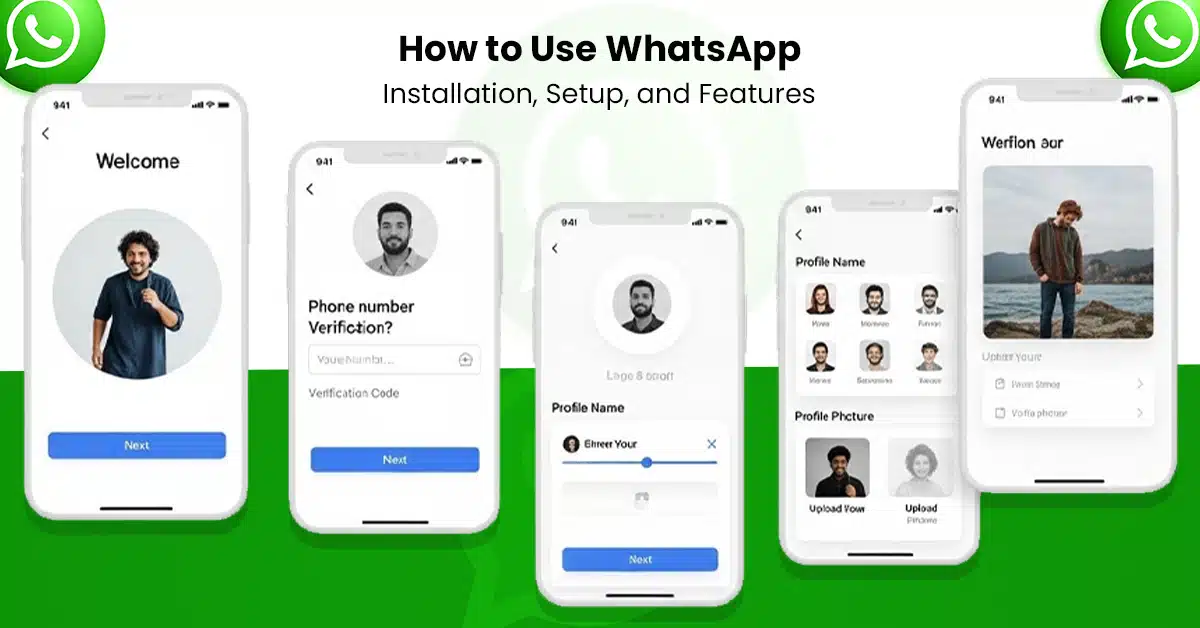
WhatsApp is one of the most popular chat apps in the world right now. This Meta-owned app is free and helps you save on phone bills.
It is not only simple to use, but it also provides so many features you can customize, which are not available for traditional messaging.
However, if you are a newbie and want to learn more about it, this blog is for you. You will learn how to install and set up this app, its features, privacy settings, and everyday tips for using this app.
30-Second Summary
WhatsApp is a household name for messaging, media sharing, and calling your contacts. It is owned by Meta: the same company that owns Facebook and Instagram.
Using WhatsApp is easy. First, you have to make an account, set your profile, and add contacts. You can voice chat, video call, voice call, or simply message the recipients. Every interaction is secure through end-to-end encryption.
Moreover, WhatsApp continues to add new features to improve the user experience and make it safer.
What is WhatsApp?
WhatsApp is a free communication application that allows users to send messages, pictures, and videos. It also has video and voice call options, as well as voice chat messages.

You can create groups and conduct group video calls, and remain in touch with your family and friends just through an internet connection.
It has an easy-to-navigate interface and offers fast communication. It also provides strong security, like end-to-end encryption.
A Brief History
WhatsApp was launched in 2009, and it was available only for iOS. In August 2010, it was made available for Android users. In just four years, this app was used by 200 million monthly active users.
Meta acquired it for $19 billion in 2014. According to Backlinko, right now, WhatsApp has more than 3 billion monthly active users.
In the US, the number of active users is over 100 million. It is also ranked as the most used messenger app in the world.
Statistics by Backlinko show that around 100 billion messages and 7 billion voice messages are sent every day on WhatsApp. These numbers are enough to show you the popularity of this app.
How to Use WhatsApp on Mobile
To get started, you first need to install the app on your Android or iOS device.

- Go to the Play Store on Android or App Store on iPhone.
- Type WhatsApp in the search bar and install it.
- Launch the app and approve all requested permissions.
- Enter your phone number and click Confirm.
- You’ll receive a verification code through SMS from WhatsApp.
- Enter it and import existing contacts into the app.
Now, you can start chatting wth any of your contacts that have WhatsApp installed on their devices. You can also manually add known contacts to WhatsApp if you do not want to import your entire contact list.
How to Set Up Your WhatsApp Profile?
Set up your account before messaging with your contacts. They will be able to recognize you through your profile even if they do not have your number saved.
You can add a picture, your name, and a short bio.
- Click on the three dots in the top right corner. Tap on Settings.
- At the top, click on your name.
- To add your picture, click on the camera icon and select a photo.
- If you want to change the name, click on Name and edit it.
- Right below the option Name, you have About.
- Click on it and add a short bio.
You can also change your number from this screen.
- Tap on Phone and change the number.
- You will get the verification number, just like when you set up your WhatsApp.
- Enter the code, and WhatsApp will transfer your chats and contacts to the new number.
Understanding WhatsApp Home Screen
On the home screen, you see all of your chats. The bottom bar shows “Chats”, “Updates”, “Communities”, and “Calls”.

“Updates” take you to the statuses of your contacts. You can also upload your own status, which we will discuss later in this blog.
“Communities” bring all the related WhatsApp groups in one place (one community), so all updates and messages are easier to manage.
“Calls” have the previous record of all your video and voice calls. On top of the same screen, there are more features.
- The Call feature allows you to call one or multiple people.
- Schedule option enables you to schedule any call, along with the call type.
- The next is the Keypad, where you can type the number you want to call.
- The last is Favorite, allowing you to add contacts and call them directly.
How to Send Messages on WhatsApp
- Open WhatsApp.
- At the top, you will see “Ask Meta AI or Search.” It is basically a search bar where you can search for the contact you want to chat with.
- Enter the name, tap on the contact, and type your message in the message box.
- Hit Send and start talking.
Your and your contact’s messages will have ticks at the bottom right.
- A single tick means that your message has left your phone and reached the WhatsApp server, but has not been delivered to your contact.
- The Double Ticks (gray) mean that your message is finally delivered to the contact (meaning your contact turned on their internet connection).
- The Double Blue Ticks mean that the contact has read your message.
How to Share Videos and Photos on WhatsApp
You can share your videos, photos, and even documents on WhatsApp. Here is how.
- First, open a chat where you want to share your media.
- In the message box, you will see a paper clip sign.
- Tapping it will open more options, like gallery, camera, location, contact, document, audio, poll, event, and AI images.
- To send videos and pictures, click on the gallery and select what you want to share.
- To share any documents or other details, you can choose the relevant options.
How to Make WhatsApp Voice and Video Calls
WhatsApp allows you to make free calls over the internet.

- Open a chat.
- In the top right corner, you will see a telephone symbol.
- Click on it and select video or voice call.
- Wait for the other person to connect.
You can call locally and internationally, given that the other person also has an internet connection.
WhatsApp Group Chat Usage
Groups are a fun feature of WhatsApp, where you can connect with multiple people in one chat.
How to Create a WhatsApp Group
- At the top right corner, tap on the three dots.
- The first option is New Group.
- Tap on it and select the people you want to add to it.
You can create multiple personal and work-related groups.
Who Manages WhatsApp Groups
Group admins have access to all features that other members cannot access. They can add or remove members, change group information and picture, and control who can send messages.
How to Use WhatsApp Status Feature
The WhatsApp status feature lets you share text, pictures, and videos temporarily. After 24 hours, these statuses disappear automatically. Here is how you can post a status.
- At the bottom, tap on Updates.
- You will see a small rectangle with Your Status on it.
- Tap on the green plus sign and add a picture, text, or video.
You can also control who can see your status through privacy settings.
- Stay on the Updates screen and click on the three dots that appear in the top right corner.
- Click on Status Privacy.
- Here you see three options: My contacts, My contacts except, and Only share with.
- Select the option according to your preferences.
How to Use WhatsApp Step by Step on Web
Here is a complete WhatsApp web guide.

- Search WhatsApp.com on your computer.
- Open WhatsApp on your phone.
- Go to Linked Devices through the three dots in the right corner.
- Open it and click on Link a Device.
- Scan the QR code from your mobile on your computer and start using WhatsApp web.
WhatsApp Features Explained
In a nutshell, these are the core features of WhatsApp.
- Voice and video calls: You can add upto 8 participants on one call.
- Voice messaging: Don’t feel like typing? Record your messages.
- Secure messaging: People involved in messaging can read them only.
- Photo and video sharing: Send videos, photos, GIFs, and stickers.
- Document sharing: Send documents, including PDFs, slideshows, and spreadsheets.
- Desktop access: As we discussed, you can use it on your computer.
- WhatsApp Business: It is designed for entrepreneurs to connect with their customers.
WhatsApp Privacy Settings
WhatsApp provides you with complete control over your privacy. You can control

- Who sees your last seen and online status (change it from Read Receipts)
- Who can see your profile picture and bio
- Who can see your status
- Who can add you to groups
You can also block any contact at any time.
WhatsApp Security Features
WhatsApp claims to be a safe messaging app for users. It offers
- End-to-end encryption, which means only you and your recipient can read the messages
- Two-step verification for account protection
- Device management for linked devices
These features make this app safe for everyday communication.
WhatsApp Backup and Restore
WhatsApp offers backup and restore so that you never lose any of your data. It backs up data automatically, but you have to set the time.

- Go to Settings (three dots at the top right corner) and go to chats.
- Scroll down to find Chat Backup.
- Select the time for backup that you find preferable.
The data of Android users gets backed up to Google Drive, while iPhone users back up to iCloud. You can restore your messages when switching to a new device by logging in with the same number and cloud account.
WhatsApp Tips and Tricks for Beginners
Make your use of WhatsApp easy with these tips.
- Pin your important chats to the top. You can pin 3 contacts in total.
- Star important messages to find them later.
- Mute group notifications for the time duration of your preference.
- Use the search bar to find old messages easily.
- Archive the chats you do not want to delete.
- Do not open links shared by unknown people to avoid scams.
- Keep the app updated for new features and security fixes.
The Bottom Line
Learning how to use WhatsApp is easy once you understand the basics. From sending all sorts of media and statuses to security features, WhatsApp has it all needed for modern communication.
With this beginner-friendly guide, start using WhatsApp confidently in your everyday life and stay connected with your family and friends.
Ready to dive into the digital world? Read more in-depth guides on The Digital Advice.
FAQs
Is WhatsApp Safe to Use?
Your messages and calls are protected through end-to-end encryption on WhatsApp. Only you and your recipients can read the messages or listen to your calls. However, stay alert for viruses or malware, and do not click any links from unknown numbers.
Are both Video and Voice Calls Free on WhatsApp?
Yes, both video and voice calls are free on WhatsApp. However, you and the person you are calling should have an internet connection.
What is not allowed on WhatsApp?
There are certain guidelines for using WhatsApp. Some content can get you banned immediately, including hate speech, threats, and harassment.
What is the Difference between WhatsApp Communities and WhatsApp Groups?
The main difference between WhatsApp communities and groups is that a community has multiple related groups, while a group is a single chat.