

The YouTube playlist feature is an excellent way to organize your videos. It improves the overall viewing experience for everyone, even yourself.
This in-depth YouTube playlist tutorial is best for
- Everyday users who want playlists of music, tutorials, study, entertainment, or personal collections.
- YouTube creators who want to organize their similar videos, increase engagement, and organize their channel layout.
By the end of this blog, you will have a clear understanding of how to create a playlist on YouTube, customize privacy settings, manage your playlist, and fix common issues when your YouTube playlist is not showing.
30-Second Summary
YouTube is a popular video-watching platform that is used by many creators and users. However, whether you are running your own channel or like to spend time watching videos, playlists help you keep organized.
So, how to create a playlist on YouTube? Discover the process in this guide, along with the benefits of creating playlists, privacy options, managing these playlists, and troubleshooting different issues.
What is a YouTube Playlist?
A YouTube playlist is basically a collection of videos under the same title. For example, if you like music, you can create a playlist in which you save all of your favorite songs.
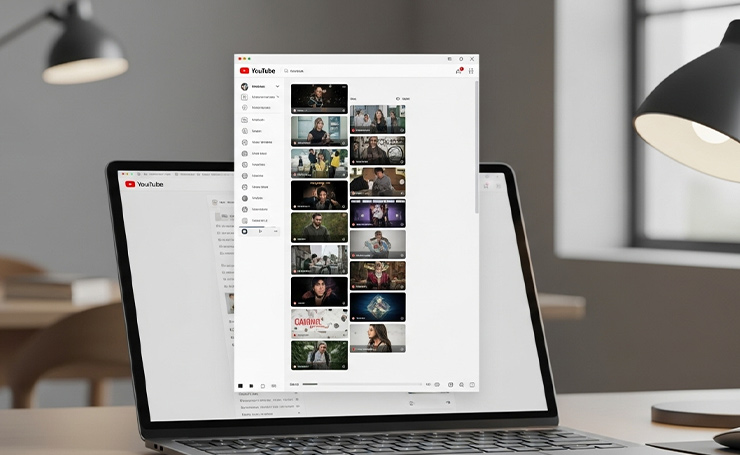
Similarly, if your YouTube channel is about digital marketing, you can save all of your relevant videos (let’s say related to SEO) in one playlist.
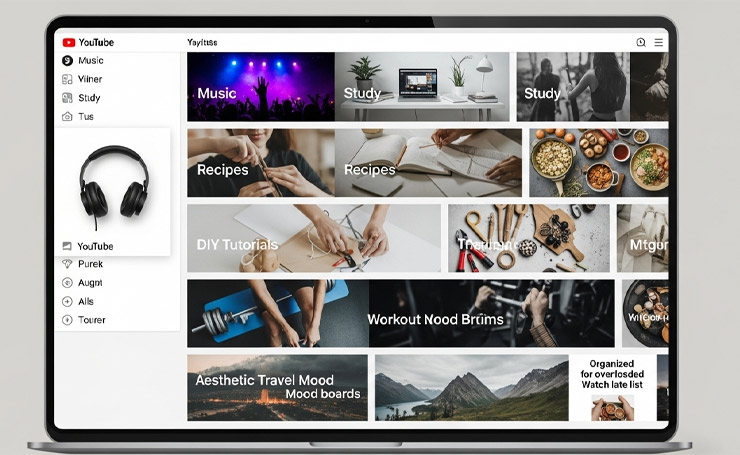
For Viewers
- Music playlists
- Study or learning content
- Recipes
- DIY tutorials
- Workout routines
- Aesthetic mood boards, like traveling
- Replacing an overloaded YouTube watch later playlist
For Creators
- Series-based playlist, like Part 1 and Part 2
- Similar topic collections
- Tutorials grouped for binge-watching
- Curated lists for viewer engagement
- Organizing videos into YouTube channel playlists for better channel layout and SEO
Benefits of Creating a Playlist on the YouTube App
As a YouTube user, creating playlists is a superb way to organize all your favorite videos. For instance, you may be learning how to sew and want to gather all the related videos under one playlist to practice.
Or you can easily make a playlist for at-home workouts for a custom fitness routine that you can do in the living room.
However, for brands and influencers, playlists are essential for organizing your content. It is just like running your own TV channel with different shows airing.
Making playlists makes it easy for viewers to find their favorite shows and binge-watch them. It also results in increased engagement, as instead of a single video, your viewers have a bunch of them to watch.
Playlists also boost user experience, as people do not have to search around for your content; they can simply watch all relevant videos from one playlist.
Interesting right? Let us move to the next section, where we explain how to make YouTube playlists.
YouTube Playlist on Desktop
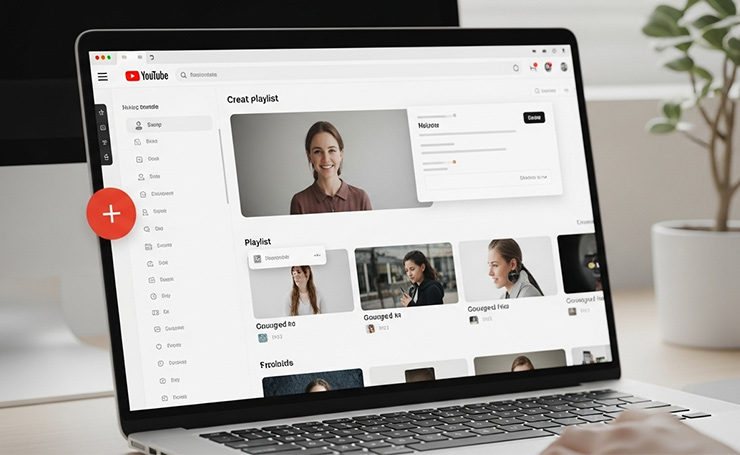
Here is a complete YouTube playlist step-by-step tutorial on desktop for both users and creators.
- Open your YouTube channel.
- At the end of the left side bar, you will see “You.”
- Click it, and you will see a plus sign with “Playlists.”
- Click on it, choose the title and visibility, and click on create.
Another tutorial is as follows.
- When you are browsing through your YouTube, you can click on the three dots under the video. These dots also appear when you are watching a video right beside “Download.”
- Click on it and scroll to the “Save” option.
- You will get two options: “Watch Later” and “Create New Playlist.”
- Click on “Create New Playlist”, name it, and choose visibility.
This is how you can create a playlist in YouTube Studio.
- Go to your profile on YouTube Studio.
- On the left sidebar, click on content.
- Select the option “Playlists.”
- In the top right corner, click on “Create.”
- Out of the dropdown menu, click on “New Playlist.”
- Add title, description, visibility, and sort order.
- If you have any existing videos, you can also add them to the new playlist.
YouTube Playlist on Mobile
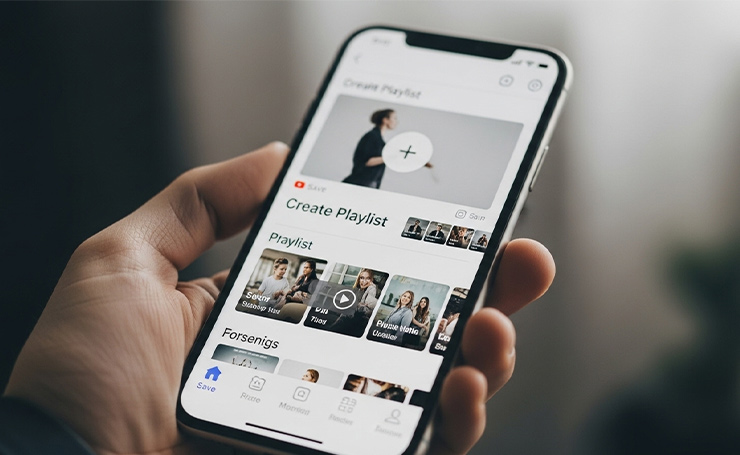
Creating a YouTube playlist on mobile is an easy process.
- While you are watching a video on YouTube, tap on “Save.”
- In the menu, click “New Playlist.”
- Name it, set the privacy, and tap “Create.”
Another easy way to make a YouTube playlist on mobile is as follows.
- Open YouTube and tap on “You” that appears at the bottom right.
- Tap it and scroll down to playlists.
- Click on the “plus sign” to make a new playlist.
- Give it a title, choose privacy, and then click “Create.”
YouTube Playlist Privacy Options
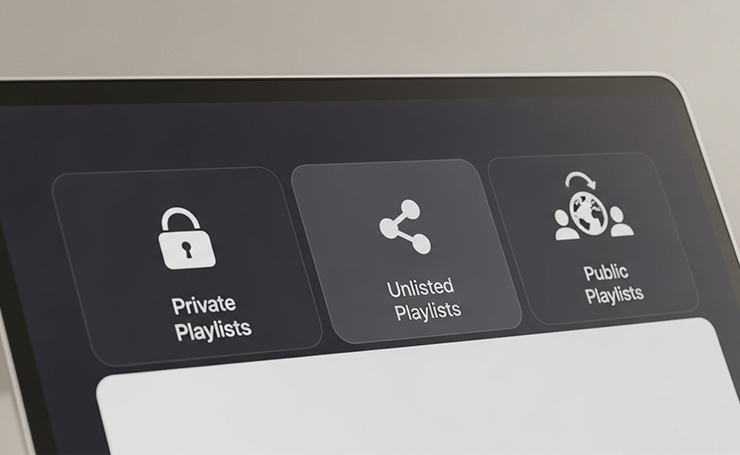
Every playlist has privacy options for both users and creators.
YouTube Private Playlist
These playlists are perfect for personal collections, as no one can see them except for you. Also, private playlists do not allow sharing.
YouTube Unlisted Playlist
These playlists are only available to people with the link. They do not appear in your search or on your channel. This option is great for private sharing.
YouTube Public Playlist
These playlists are visible to everyone, and they also appear on your channel. They can also show in search results and are superb for creators and shareable content.
How to Include Videos in a YouTube Playlist
The process of adding videos to a playlist is similar for both users and creators.
For Any Video (Both Mobile and Desktop)
- Whether you are watching a video or simply browsing, you can save a video to the playlist by clicking on the three dots. They appear at the bottom of a video while browsing and right next to “Download” while watching.
- Tap the option “Save.”
- Select the playlist where you want to save the video.
From YouTube Studio
- Open YouTube Studio and click on “Content.”
- It will show you all your uploaded videos.
- Select one or multiple videos.
- Once the video is selected, click on “Add to Playlist.”
- You can either add it to an existing playlist or make a new one by tapping on “Create a New Playlist.”
- Click “Save.”
How to Organize YouTube Playlists
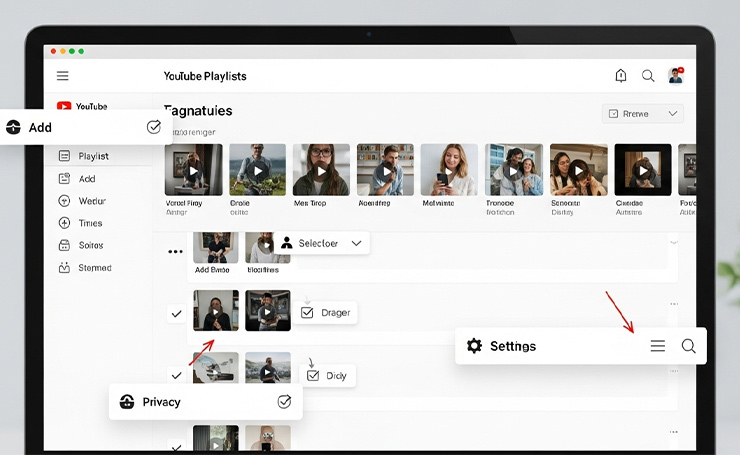
To manage YouTube playlists, all you need to do is the following.
Adding or Removing Videos from a Playlist
To add videos to any of your playlists, save the video by clicking three dots, tapping on the option “Save”, and then selecting the playlist of your choice.
To remove a video, go to the playlist page and tap on the three dots that appear on the right side of the video. Click on “Remove from Playlist” to get rid of it.
You can add multiple videos to one playlist, as there is no limit.
Adjusting YouTube Playlist Settings and Privacy Options
Go to playlist settings by clicking on the three dots on the playlist page. You can change privacy, allow others to add videos, or delete the whole playlist.
Why is my YouTube Playlist not showing: Troubleshooting
Here are some of the most common problems faced by both users and creators.
Privacy Setting Issue
If your playlist is private, it won’t show to anyone. If you want otherwise, change the settings to public.
Empty Playlists Do Not Show
You need to add at least one video for the playlist to show.
Daily Playlist Limit
YouTube does not allow creating too many public playlists in one day.
Restricted Videos
Some videos cannot be added due to restrictions, such as Made for Kids videos.
Outdated or Cached Page
You need to update or refresh YouTube to solve this problem.
Channel Layout Issue for Creators
You have to add playlists to your channel’s Home layout manually in YouTube Studio.
Conclusion
Whether you are a casual viewer or channel owner, you must have wondered, “How to create a playlist on YouTube” for better organization. This guide explained the process for both mobile and desktop users.
For users, playlists also enhance personal browsing experience. It improves engagement, is simple to manage, and boosts your channel’s success if you are a creator.
Ready to learn more about the digital world? Visit The Digital Advice for more in-depth blogs.
FAQs
How do you change YouTube Playlist Privacy from Public to Private?
Open your playlist and click on Edit. Find the Visibility option and choose Private, Public, or Unlisted, and click Save. This works on both desktop and mobile.
What is the Difference between a Watch Later playlist and a custom YouTube Playlist?
Watch Later is a built-in playlist that allows you to save videos you will watch when you get time. Custom playlists let you organize by category, reorder them, add descriptions and titles, and share them. It is better for long-term organization.
How can You Delete a YouTube Playlist without deleting the Videos?
Open the playlist page and click on the three dots appearing at the bottom right of every playlist. Click on it and then tap delete. Don’t worry! Deleting a playlist does not mean that you are deleting videos.